

Upload files to your project and reference them in chat with @asset: syntax. The agent picks the right URL automatically for Preview and Live environments.
You can now upload files directly to your project and reference them in chat. This makes it easier to manage images for your projects and make sure they appear in both your preview and live environments.
You can access your assets by going to the dashboard within the workbench and clicking on the assets tab. This is where you will add images to be used in your app.
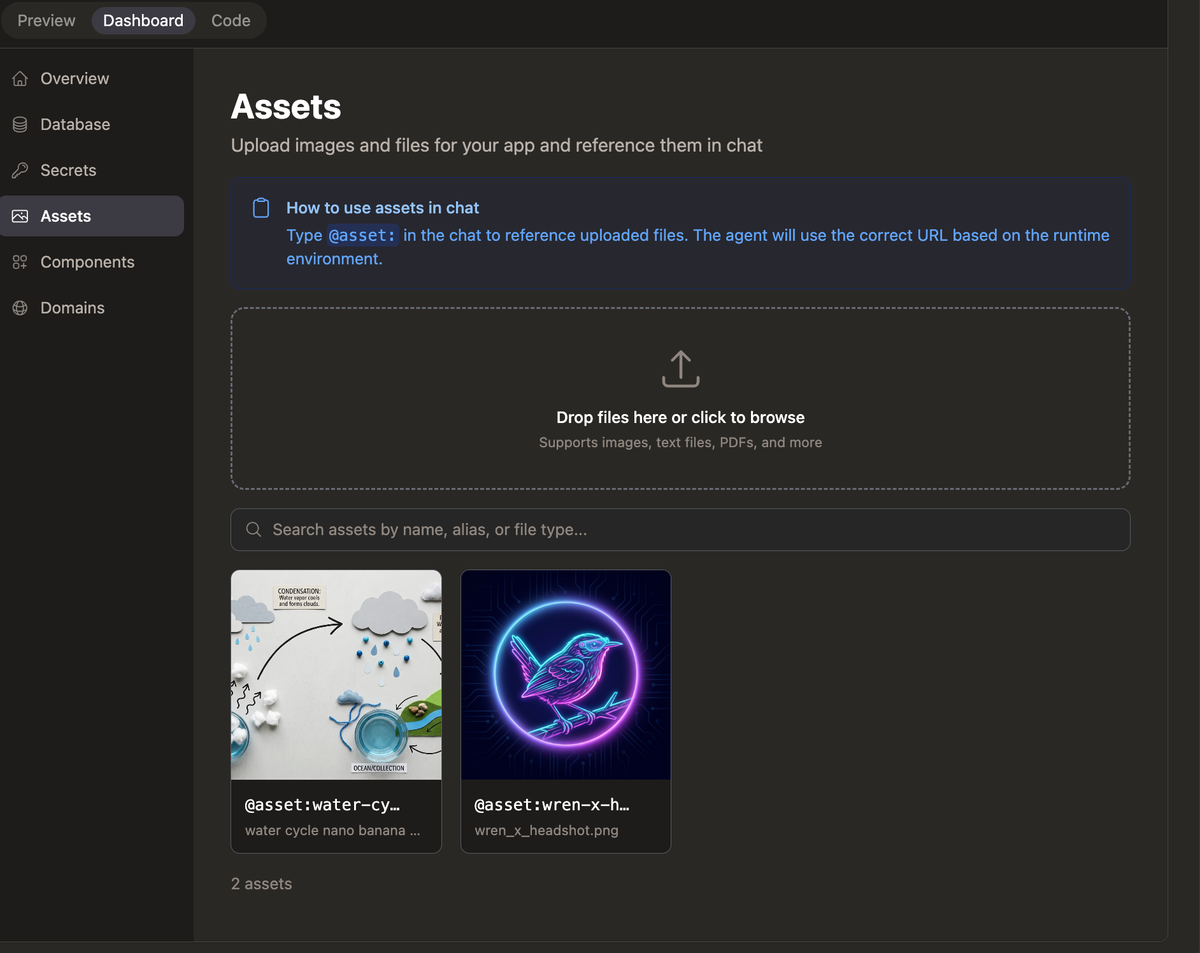
Once you add the images you can reference them in the chat to tell the agent about them. For example you can say “use this image as the hero image for my site”.
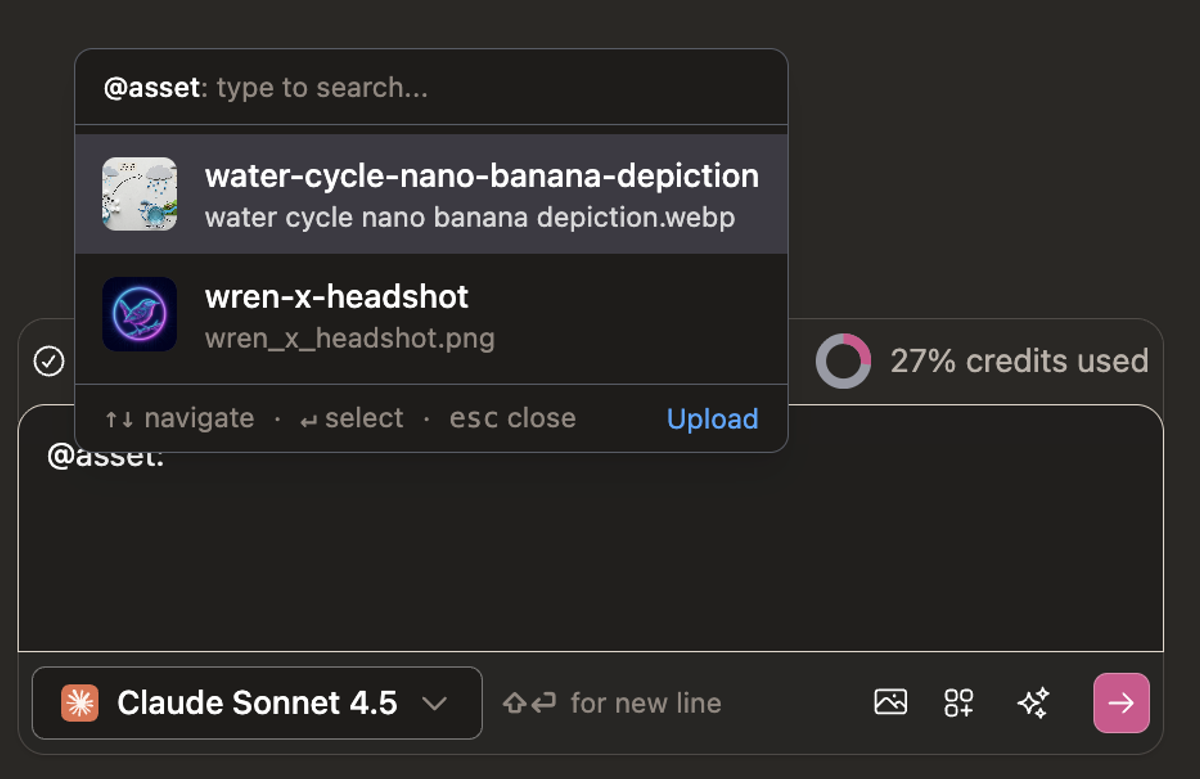
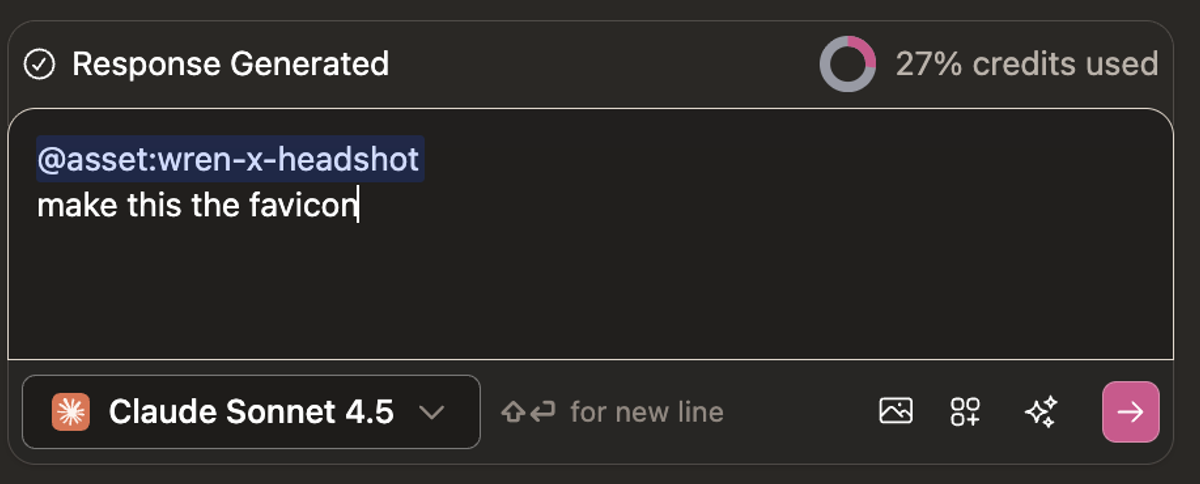
Type @asset: to attach an uploaded file to your message. Under the hood, the agent will pick up the related URL where the image is hosted.
Files are stored in your project's Convex backend so they survive across Preview and Live deployments. Find the Assets tab in the project dashboard inside the workbench.